
Softr's AI Co-Builder already gets you an app and the database behind it, and Workflows are great for automating tasks you can predict in advance. But what about the rest of the work your team is still doing by hand?
Softr Agents close that gap. You describe what the agent is for, give it a set of tools, and it takes real actions across your apps, databases, and connected services. Read on to learn what Softr Agents are and how you can build one yourself.
What are Softr Agents?
Softr Agents are AI assistants that work directly inside your existing Softr apps, chatting with users and automating tasks across your workspace.
An agent can:
- Chat with your app users and answer in plain language.
- Search a knowledge base you upload, pullings answers from your own material.
- Take actions, like reading and writing records, sending email and Slack messages, and calling external services.
- Remember relevant details about a user across a conversation.
- Run unattended on a schedule to handle recurring workflows.
Note: Softr Agents aren't the same thing as Database AI Agents, which enrich fields inside a Softr Database table. Database AI Agents work at the field level, while Softr Agents work across a whole app. You can use both, and they complement each other.
Agent types: App agents and Schedule agents
The first choice you'll make during setup is deciding how the agent runs. There are two Softr Agent types to choose from:
- App agent: Users chat with it inside the Softr apps you connect. Anything they'd normally do by clicking, they can now ask for in plain language.
- Schedule agent: The agent runs on a recurring schedule with no user in the loop. Use this for recurring reports, data cleanup, and sync jobs.
If you aren't sure which type to pick, don't worry. This selection can be changed later.
Your app determines what a Softr Agent can do
When you connect an agent to a Softr app, that app becomes its source of context, tools, and data. It works the same way the App MCP Server exposes an app to external AI assistants. The agent reads and acts on data, but only as the signed-in user who's chatting with it.
In other words, an agent's limits are set by what that user can do through the interface:
- An app's blocks determine what's possible. A list, grid, or table lets the agent read records. A form lets it create them, using only the fields the form shows. Inline editing lets it update, and a delete action lets it delete.
- No block for a table means no access to that table, even when the underlying data source holds it.
- Users and permissions still apply. User groups, page visibility, and data restrictions work exactly as they do in the interface.
If you want to expand or constrain what an agent can do, simply change what's in the app. For example, you could add a form to allow record creation and a list to allow reading, or hide a block by user group to limit access. Softr Agents use the permission model and data access rules that are already enforced by the app.
How to create a Softr Agent
Building an agent takes just a handful of steps in your Softr dashboard, and you won't need to code for any of them.
1. Create an agent and choose a type
Open Agents in the left sidebar of your Softr dashboard, then click Create.
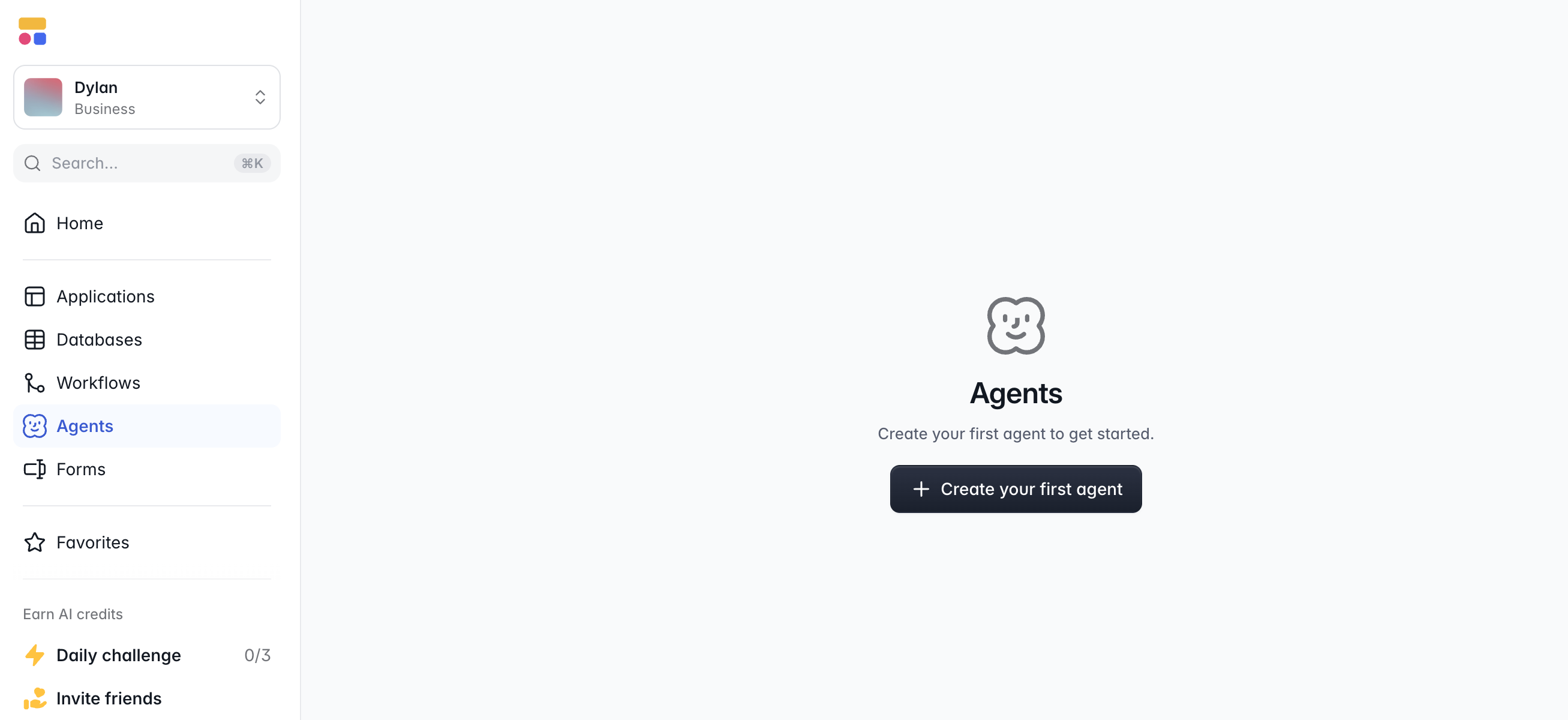
In the Choose an agent type window, pick App agent or Schedule agent, then click Next. Remember, you can always switch types later. (For this guide, I'll build an App agent.)
2. Set up the agent profile
Give your agent a descriptive title, then configure these three settings in the editor:
- Model: Choose the AI model that powers the agent. Models are grouped by cost tier, so you can weigh capability against price.
- Reasoning effort: On models that support it, set how much the model thinks before it answers: Off, Low, Medium, or High. Higher effort improves quality on complex tasks, but it also runs slower and costs more.
- Instructions: Describe how the agent should behave. At a minimum, state its primary goal, what it should always do, and what it should never do.
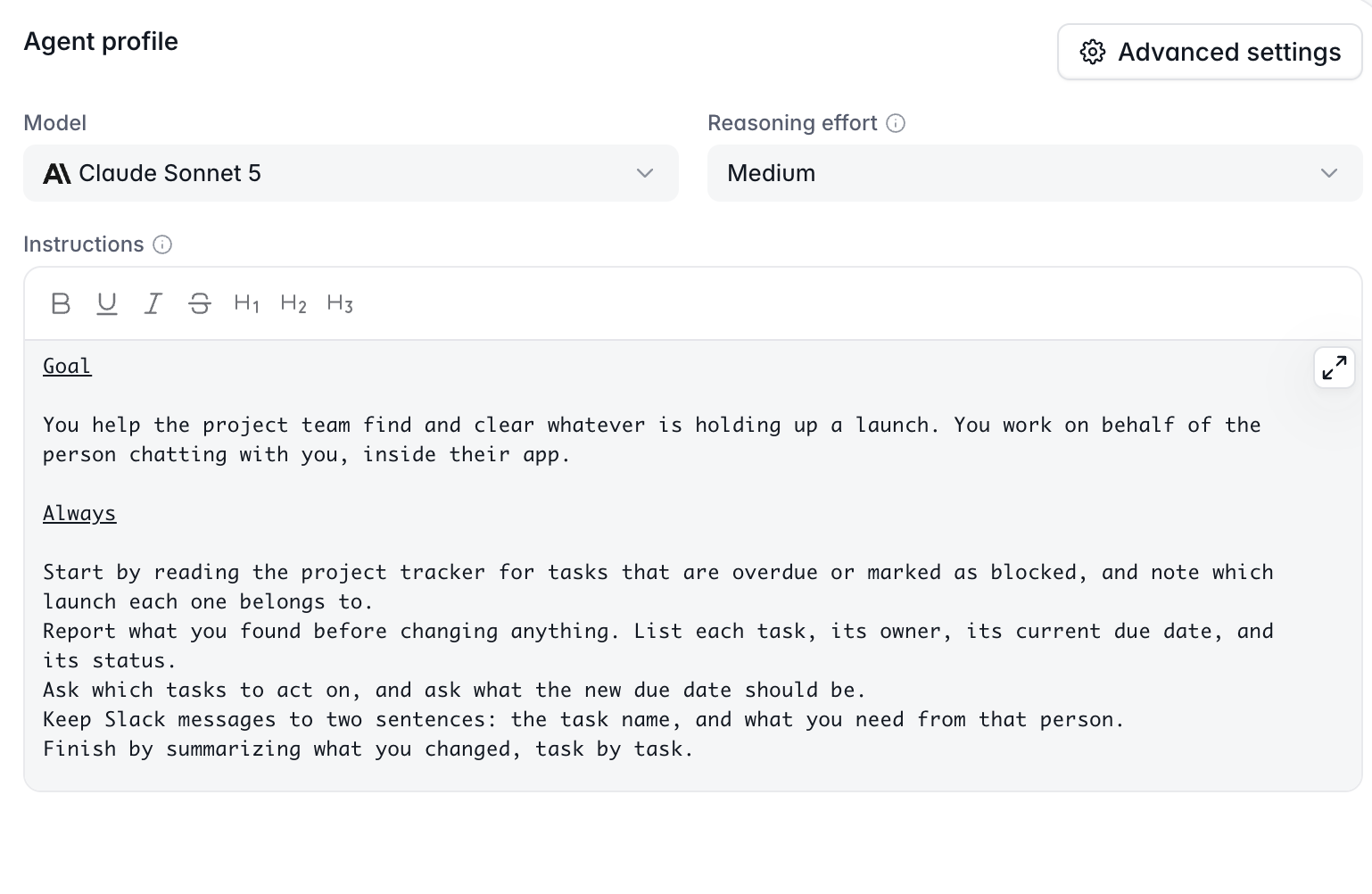
I recommend starting with a mid-tier model and moving up to a flagship model only if the agent struggles with multi-step reasoning.
Note: Under Advanced settings, you can configure your agent's API key credential and set a maximum number of tool calls an agent may make in a single turn.
3. Connect your apps or add a schedule
For an App agent, open the Connected apps card and click Connect app. Choose which Softr apps the agent appears in, then set tool permissions to determine what it can read and write. You can enable or disable certain tools by default, or require approval for specific actions.
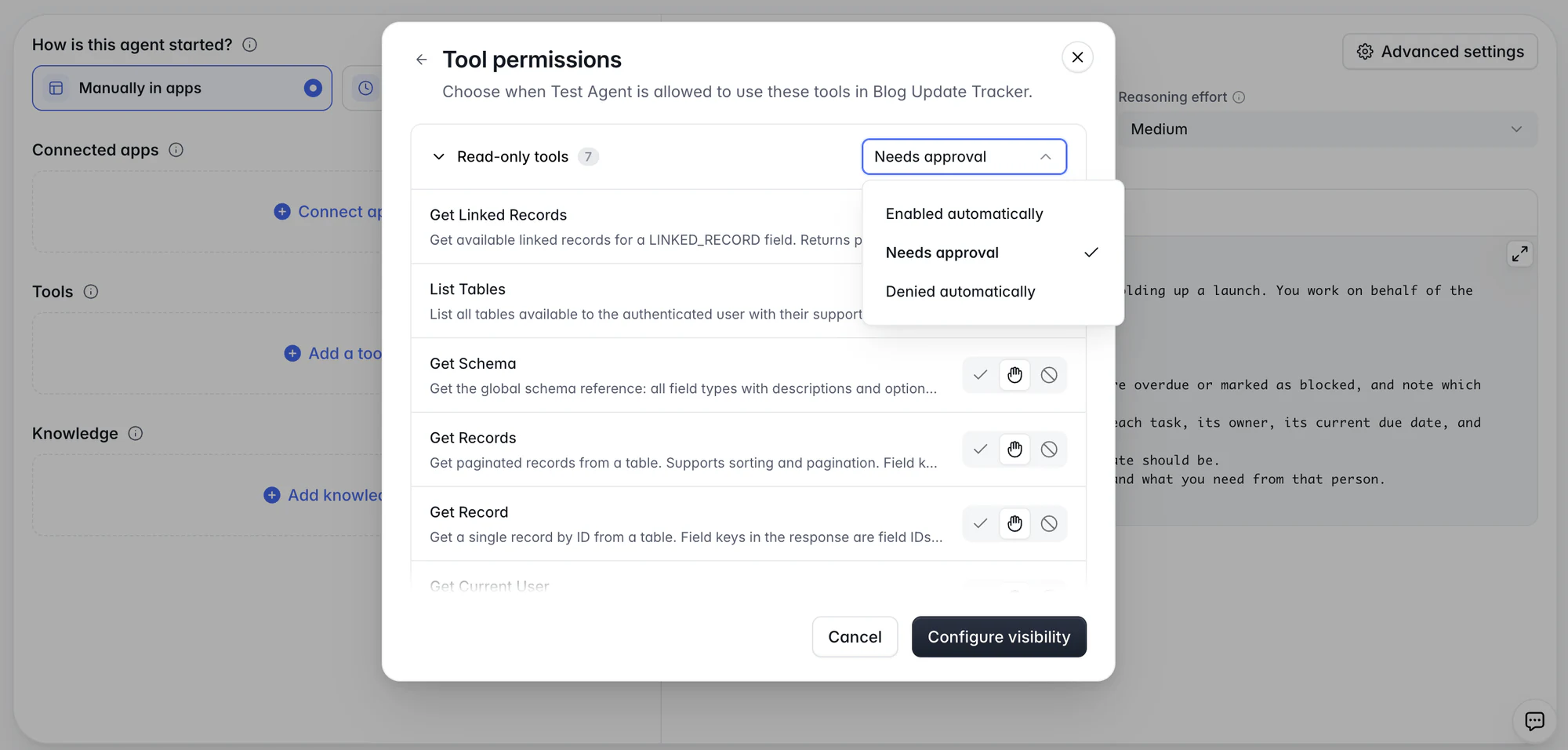
Connecting a Softr app is all the data setup an agent needs. It gets the same create, read, update, and delete (CRUD) access the signed-in user has, so you don't have to add a separate data tool.
For a Schedule agent, open the Schedules card and click Add schedule. Set the cadence and a timezone, then decide whether you want it to run on weekends.
4. Add tools and actions
Tools are what the agent can actually do, whether that's inside of Softr or through third-party app integrations. Click Add a tool, then select one from the window that opens. Examples of native actions include:
- Softr, Google Sheets, and HubSpot: Read, create, update, and delete records, rows, and objects
- Gmail: Send emails and create drafts
- Slack: Send channel messages, send direct messages, and find users
- Send email: Send emails through Softr's built-in email service
- Custom MCP: Connect the agent to a custom MCP server
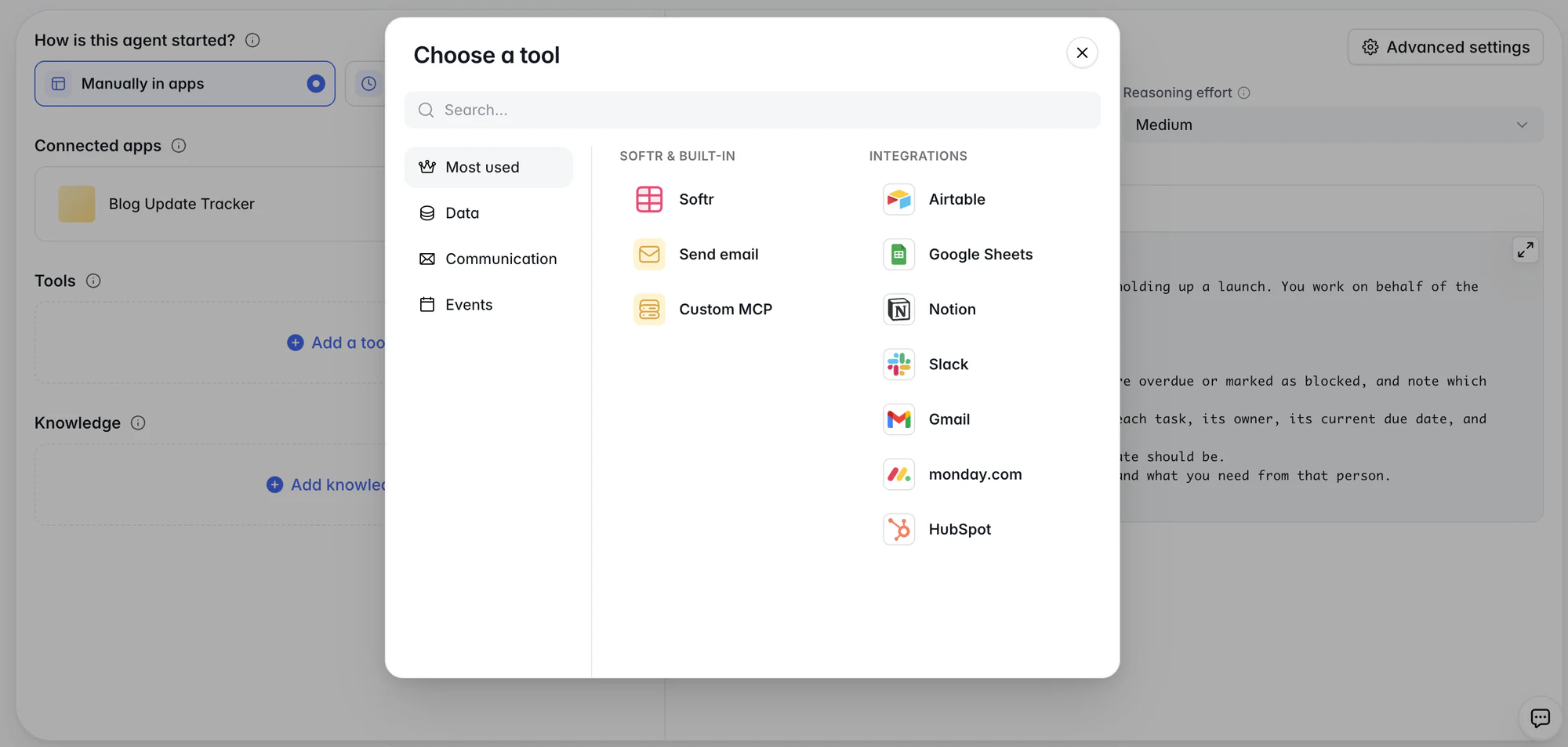
For each tool you add, you'll need to configure a few settings. These will differ depending on what you're connecting, but here are a few examples:
- Authorization: Give Softr Agents access to external apps like Airtable or Notion. You decide what level of access to provide.
- Authentication: Choose Per user authentication to act as each user's own account. Choose Shared authentication to use one workspace connection instead.
- Ask for confirmation: The agent shows a summary and waits for approval before it runs. Schedule agents have no live user, so the option doesn't apply to them.
- Input fields: For every field, pick Agent decides or Custom. Custom sets a fixed value the agent can't change.
5. Connect an MCP server
Softr Agents can also pull in tools from an external server over the Model Context Protocol (MCP). Softr ships ready-made connections with pre-configured URLs, meaning all you have to do is authenticate. External apps like Airtable, Notion, and monday.com connect in this way (as do Attio, Apollo, Linear, Supabase, Calendly, Atlassian, and others).
To connect your own server, choose Custom MCP and provide a name, the server URL, and an authentication method. Then set each tool the server exposes to Allow, Ask, or Deny. Write actions default to Ask, so review those permissions before you turn the agent on.
6. Add knowledge
Open the Knowledge card and click Add knowledge to upload files (PDF, TXT, or MD) or insert links. Because Softr indexes each source, the agent can easily find and cite relevant passages. Any source you add becomes searchable once its status is Ready.
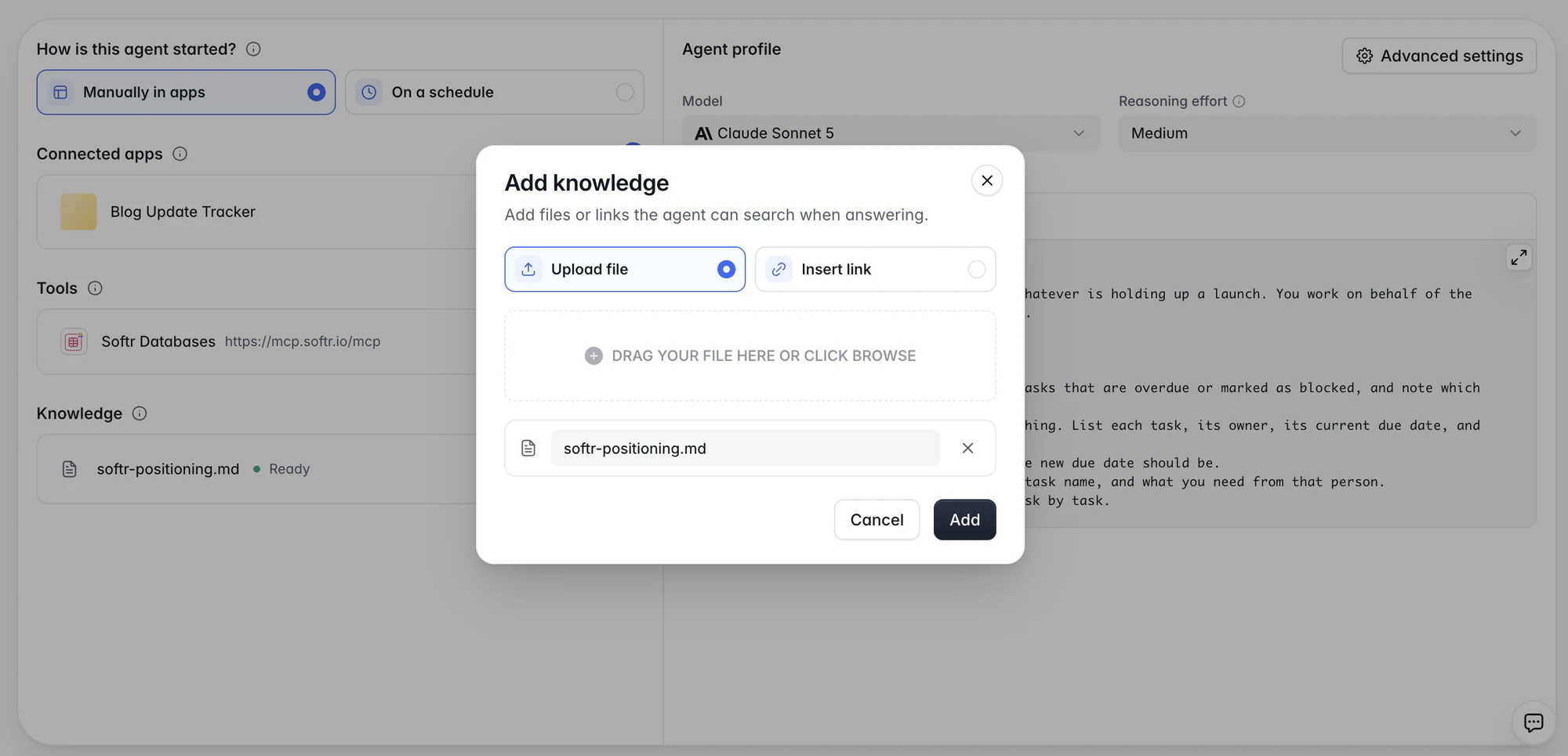
Adding knowledge lets you ground Softr Agents in your own content and positioning: product docs, policies, FAQs, and SOPs. Without it, the agent answers from general knowledge instead of your material.
7. Test the agent and turn it on
Under Connected apps, click Test and you'll be taken to the selected Softr app with the agent panel open. Here, you can interact with it in preview mode to make sure it's working as intended.
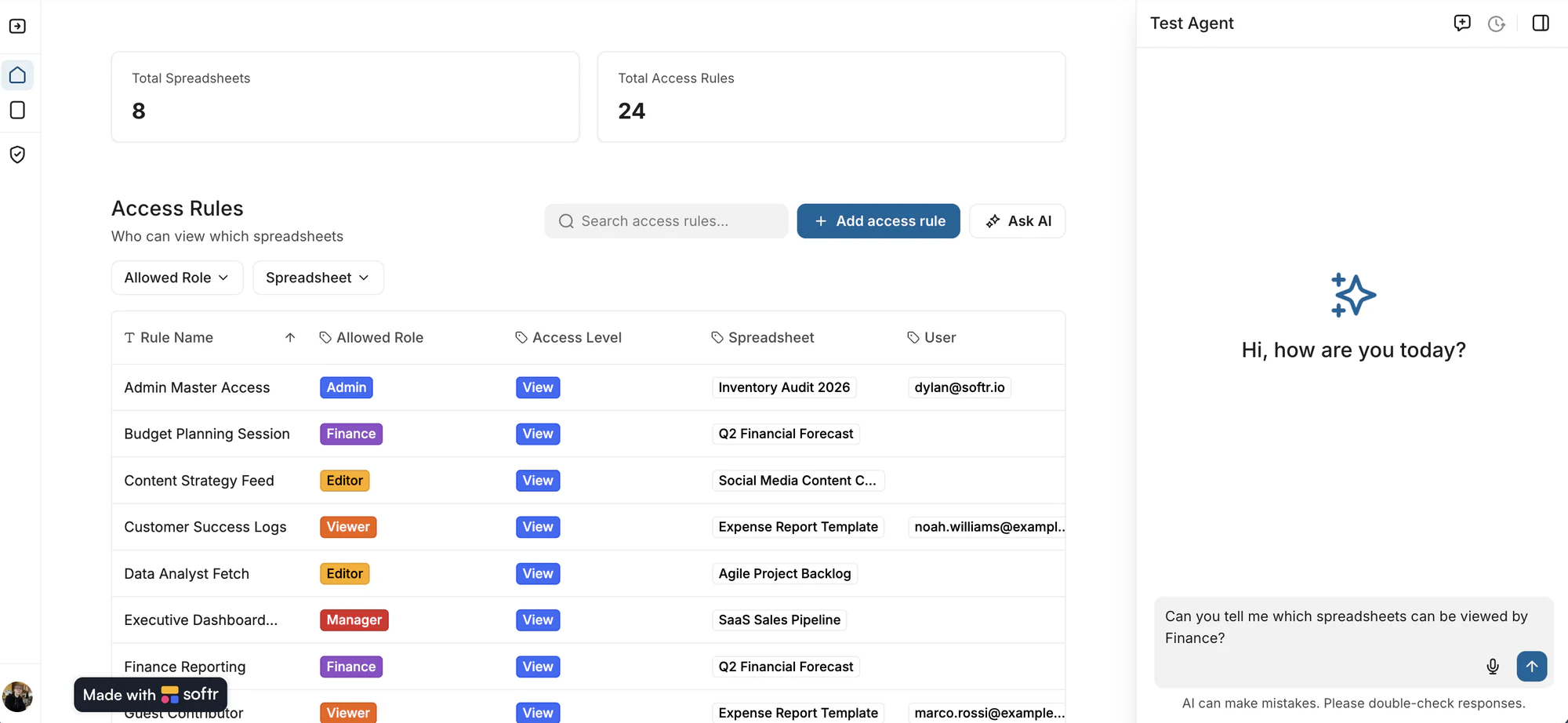
If everything looks good, return to the agent setup screen and click Turn on in the top-right corner to enable your Softr Agent. Editing a published agent creates a draft, so remember to click Update to push any changes live.
On the left, you'll also see a Runs panel that logs every agent execution and lists the model, duration, tool calls, credits charged, and token usage. Use the Show errors only filter to find and troubleshoot failed runs.
👉 For the full reference on every agent setting, see our Softr Agents documentation.
What can you do with Softr Agents?
The possibilities are vast, but as a rule, agents will have the biggest impact on workflows that span multiple tools and cost human users lots of time. To give you an idea of what Softr Agents can do, here are three tasks they handle particularly well.
Find out what's blocking a launch
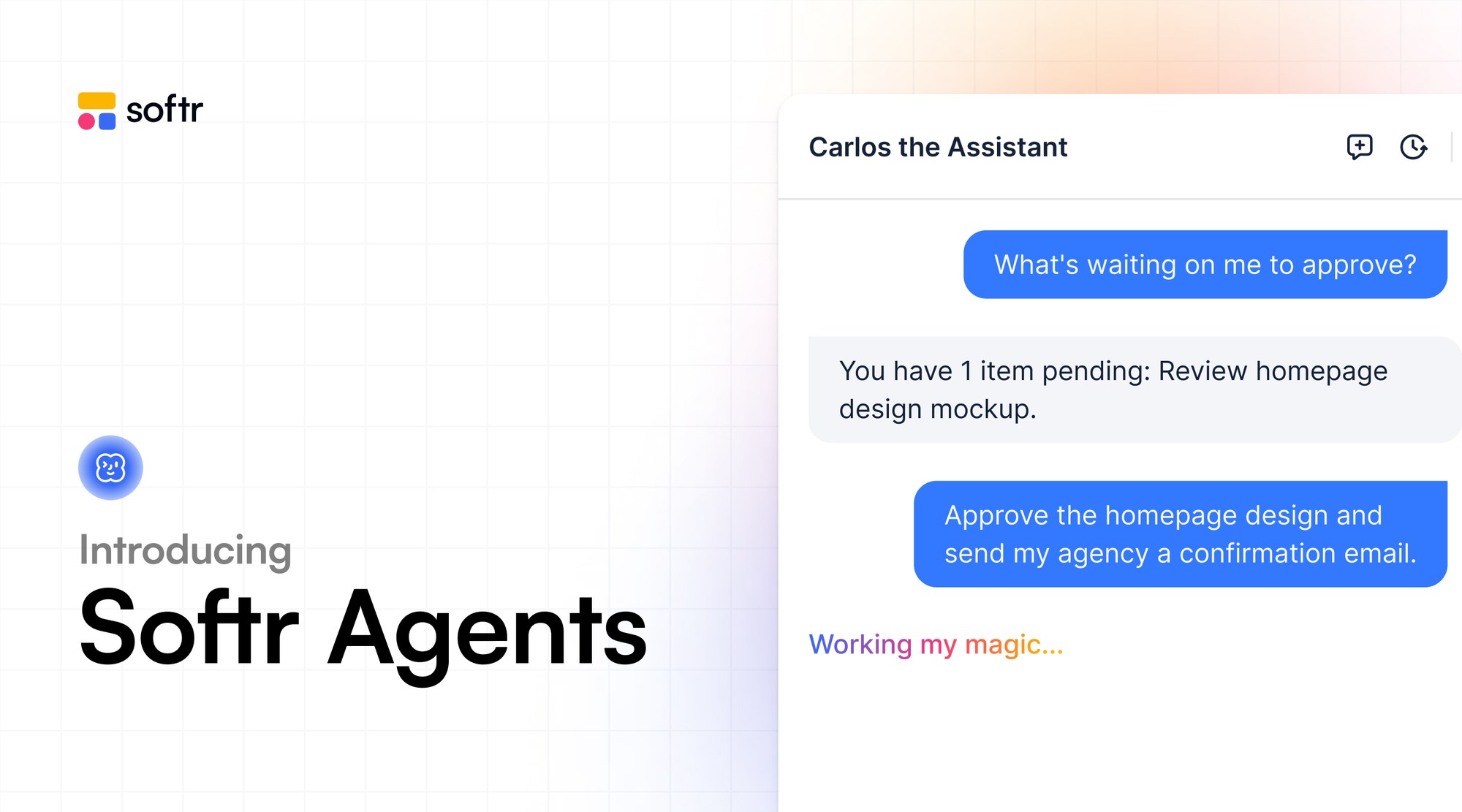
A project manager opens your internal tool and asks, "What's blocking the launch?"
The Softr Agent reads the project tracker, finds the overdue tasks, and automatically messages each task's owner on Slack. It then moves those tasks to a new due date and updates their statuses. Your agent handles what used to require looking at a filtered data view and sending six tailored Slack messages to different people.
Collect client approvals inside a portal
A client logs in to your client portal and asks, "What's waiting on me to approve?"
The agent lists only the items assigned to that client, because it acts as if it is them. The client approves the items they're happy with, and the agent updates each status and notifies the relevant team members. You don't even have to set up agent-specific access rules, because it inherits the ones your Softr portal already uses.
Send a Monday morning account report
A Schedule agent runs every Monday at 8am in the timezone you set.
It reviews account status across HubSpot, your Softr app, and your analytics tool, then writes up a report. It emails each client a digest and posts an internal summary to Slack. Recurring reporting is a solid place to start with this agent type, because the output always follows the same structure.
Pricing and AI credits
Agent runs consume AI credits. How many depends on the model you choose, the number and size of the tool calls, knowledge searches, and the length of the output.
Every Softr plan (Free included) comes with a monthly credit allowance, so you can test agents out at no added cost. On higher plans you can also supply your own LLM provider API key, so your provider bills the usage instead of your Softr credits. Learn more about AI credits.
Put your first Softr Agent to work
Softr Agents sit on the same foundation as the rest of your app. Softr Databases hold the data, native blocks and permissions determine who sees what, and Softr Workflows handle the repeatable automations you can plan in advance. Agents work with greater autonomy, deciding which tools to use, and in what order, to complete tasks and respond to requests.
But autonomy doesn't have to mean ditching your guardrails. Agents are securely permissioned in the same way your Softr apps and data are, so you never have to worry about them accessing (or changing) what they shouldn't.
👉 Try Softr free and build your first agent today.
Frequently asked questions
What's the difference between Softr Agents and Database AI Agents?
Do I need to know how to code to build an agent?
What can an agent see and do inside my app?
Can I connect my own tools to a Softr agent?
How is a Softr agent different from Ask AI?